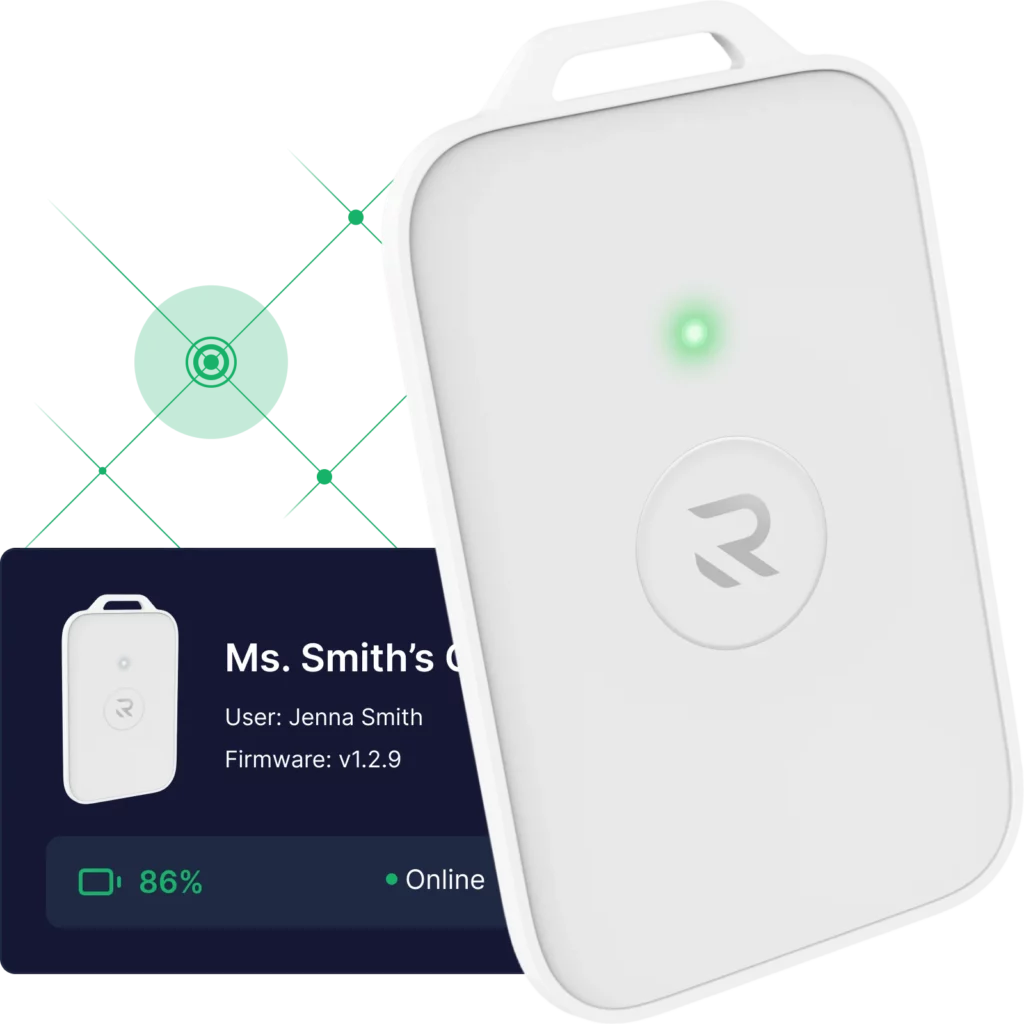

Emergency Awareness Starts With a Phone Call
Punch Rescue connects to Zoom Phone so that dialing 911, or any number you choose, instantly declares an emergency and alerts the right people. Staff are notified in the mobile app, the web app, by SMS, by email, and through other channels, all without anyone opening a separate tool.
Interested In Our Solutions?
Contact us today for more information.
How We Integrate With Zoom
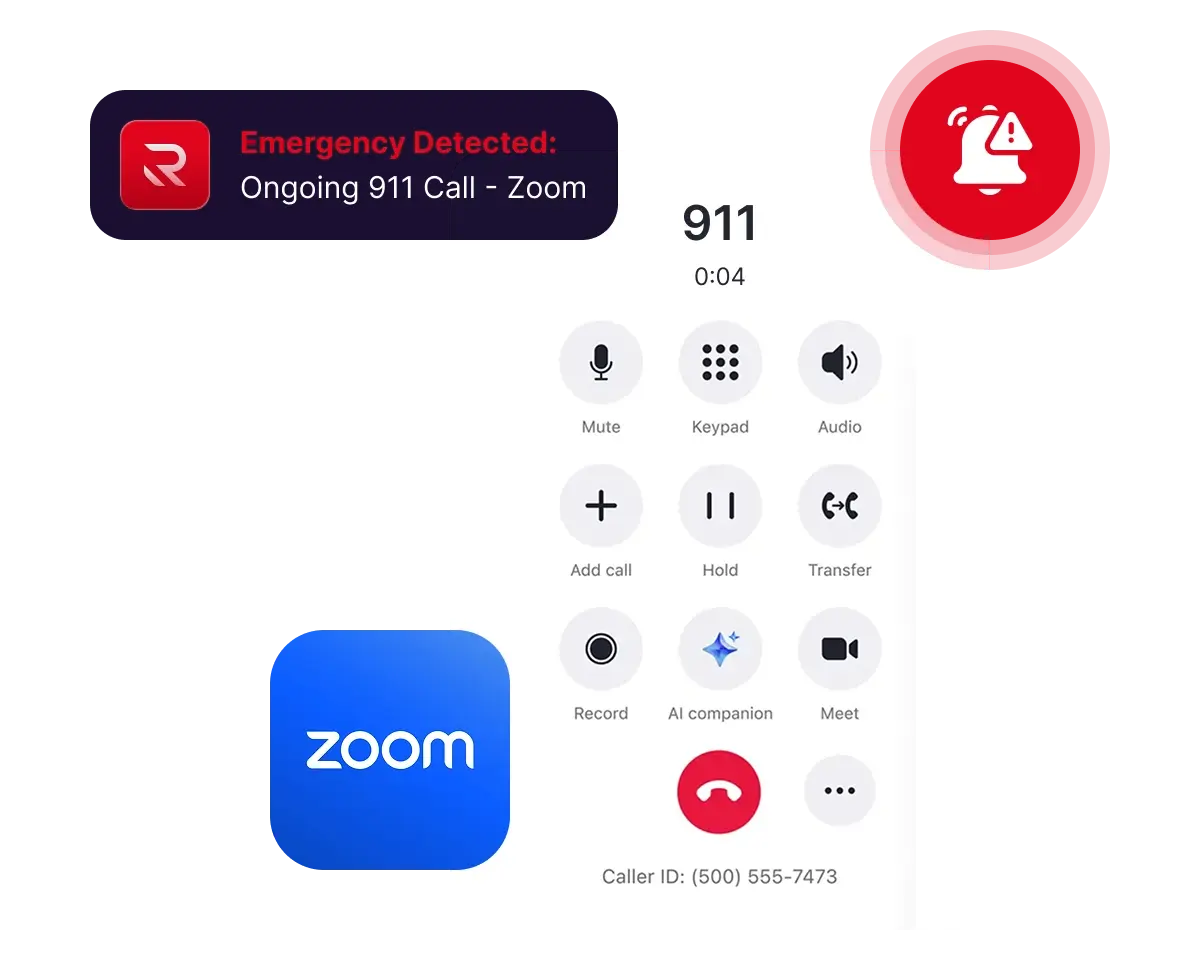
Monitor 911 Calls Automatically
When you connect Zoom, Punch Rescue begins monitoring your Zoom Phone extensions for 911 calls. Whenever anyone dials 911, your organization knows right away.
Create Emergencies From Any Number You Choose
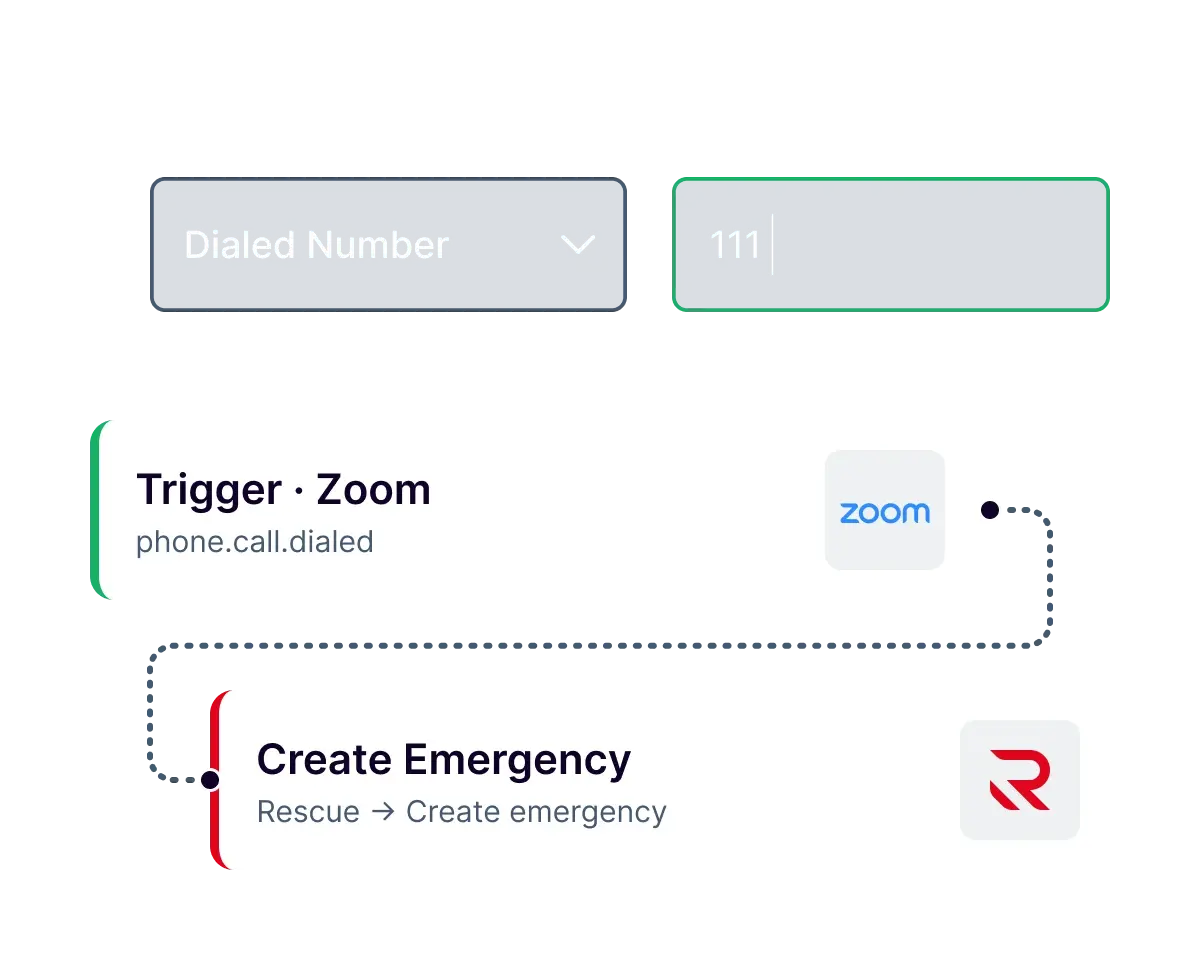
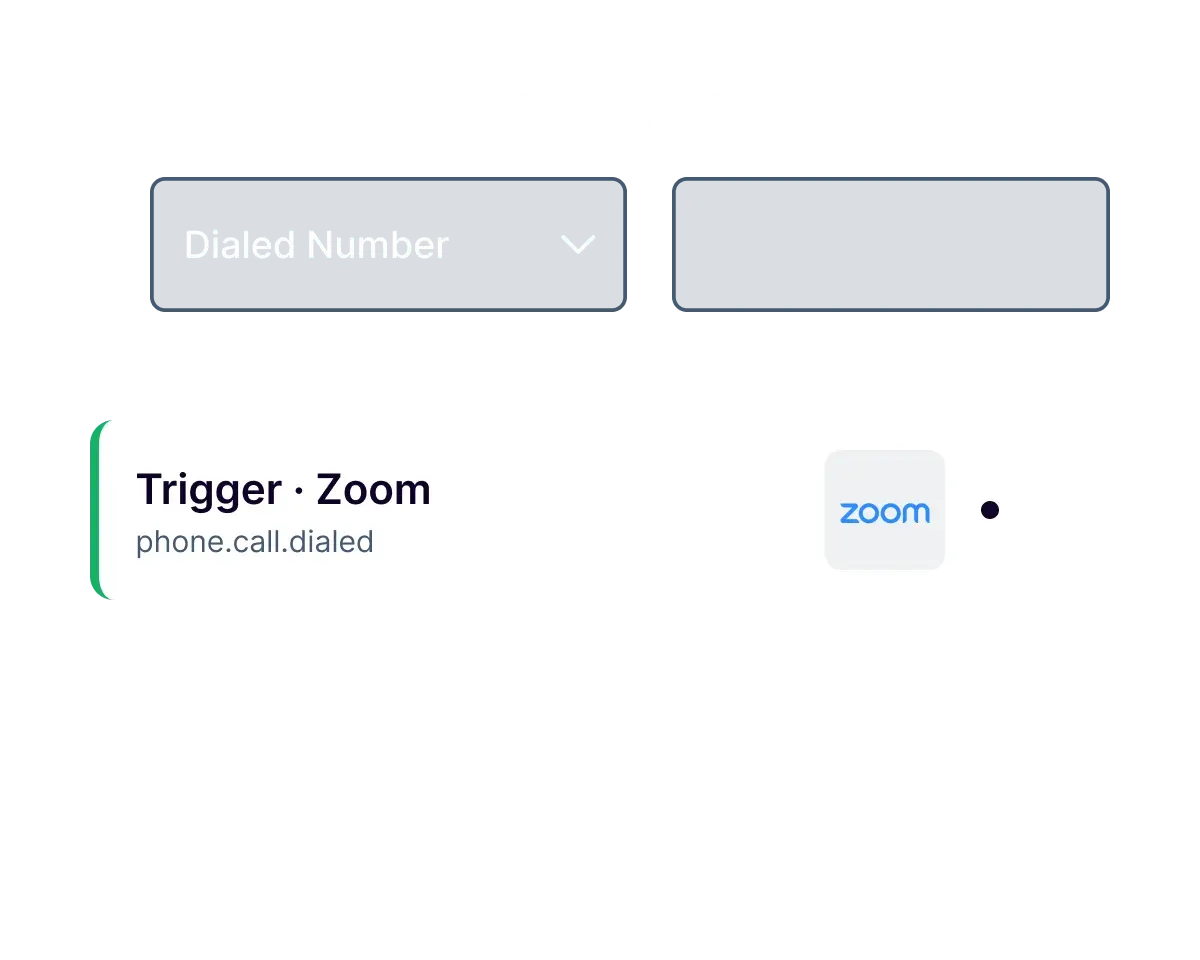
Map quick-dial numbers to emergency categories such as Internal Alert or Medical Major. Dial the number from any Zoom Phone and an emergency is created in Punch Rescue.
One Zoom Account, Many Locations
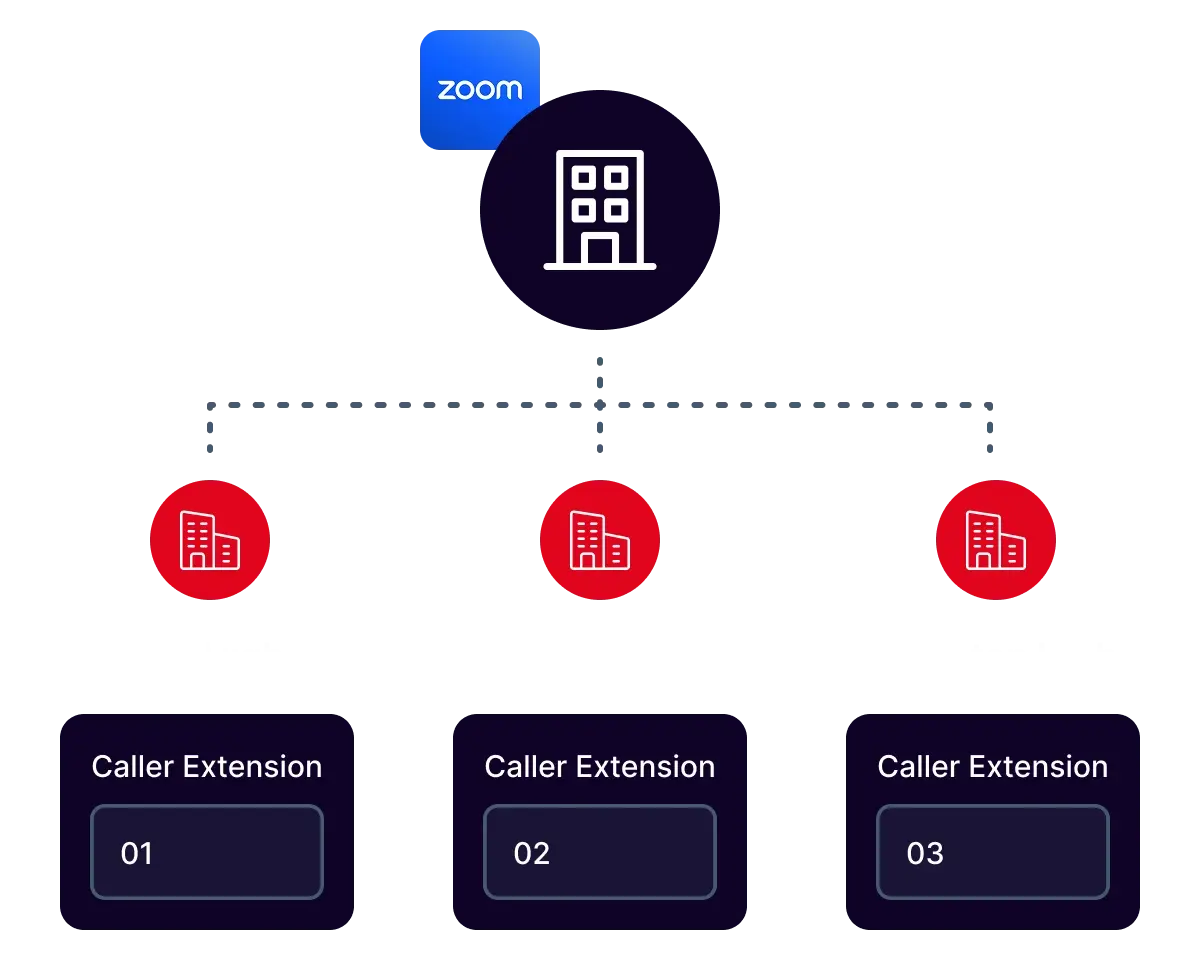
Running one Zoom account across multiple schools or buildings? Enable Zoom once at the enterprise level and assign extensions to each organization, so the right people are notified for the right location.
What the Integration Delivers:
- Automatic 911 Awareness: A default workflow is created when you connect, so 911 monitoring works from day one.
- Custom Emergency Numbers: Map any dialed number to an emergency category and response.
- Location Context: The Zoom emergency address travels with the call and appears on the map in Rescue.
- Multi-Channel Notification: Mobile app, web app, SMS, email, and more, controlled by emergency category.
- Chained Workflows: Use a Zoom call as the starting point for any other Punch Rescue workflow or hardware action.
- Enterprise Controls: Enable Zoom once and manage extensions across every organization from a single console.
The Result:
Your phone system becomes part of your emergency plan. Every 911 call and every custom emergency call creates immediate, documented awareness across your organization, with no extra steps for the person on the phone.
Zoom Integration Guide
Everything you need to add, use, and remove the Punch Rescue Zoom app.
Prerequisites
Before you begin, make sure you have:
- An active Zoom Phone license
- A Zoom account with administrator permissions
- A Punch Rescue account with administrator access
- For multi-organization setups: Punch Rescue enterprise portal access
Adding the App
- Open Rescue Intelligence. Log in to Punch Rescue and switch to Rescue Intelligence using the toggle at the top of the screen.
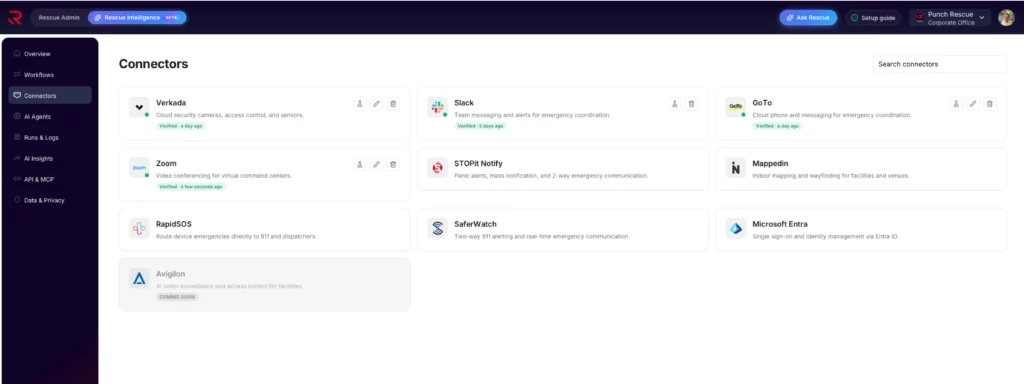
- Go to Connectors. Select Connectors in the left menu, then find Zoom.
- Activate Zoom. Select the Zoom card to begin setup.
- Sign in to Zoom as an admin. You will be taken to Zoom to sign in and authorize the connection.
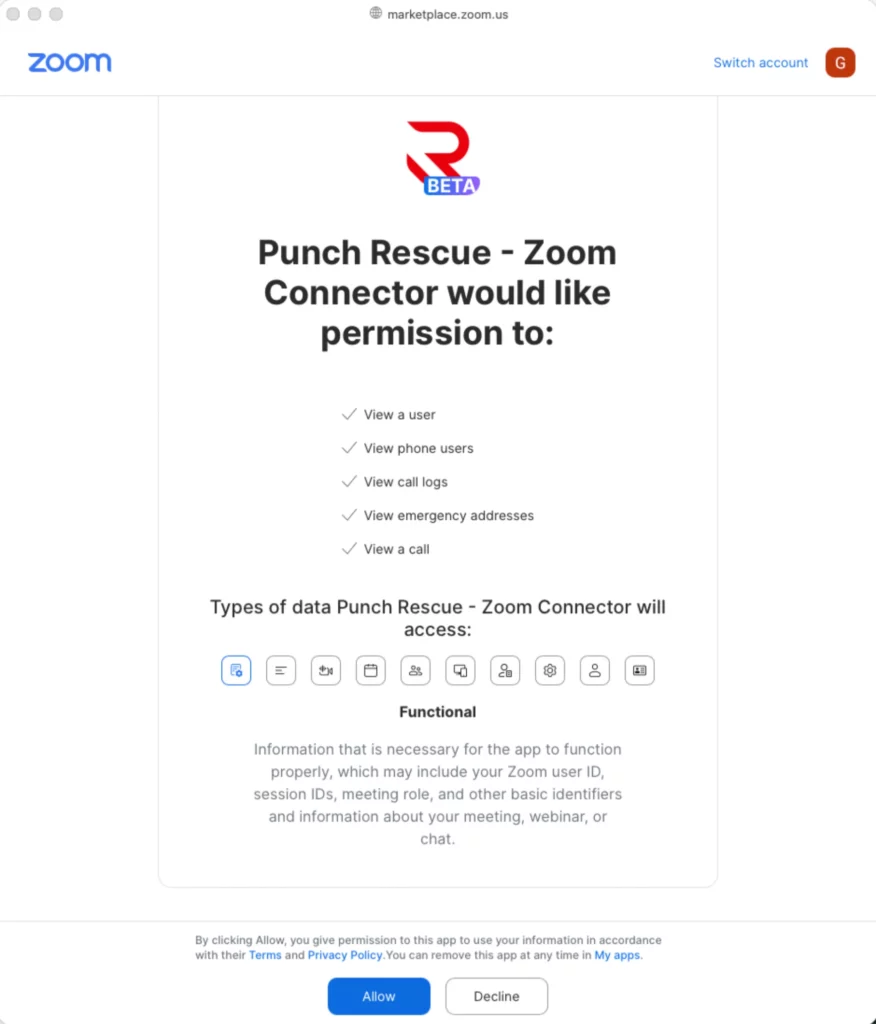
- Review permissions. The consent screen for “Punch Rescue – Zoom Connector” asks permission to:
- View a user
- View phone users
- View call logs
- View emergency addresses
- View a call
- Select Allow. You will be returned to Punch Rescue automatically.
- Test the connection. Use the Test button (flask icon) on the Zoom card at any time. A green Verified status with a timestamp confirms the connection is working.
What happens automatically: A workflow is created that monitors 911 calls and creates an emergency in the “Zoom 911 Call” category.
Starting from the Zoom Marketplace? The “Visit Site to Add” button on the Marketplace listing opens Punch Rescue. Finish the connection from Connectors > Zoom > Connect.
Need help? See Troubleshooting and Support above.
Monitor 911 Calls (Default)
What it does: Every 911 call placed from a monitored Zoom Phone extension creates an emergency in Punch Rescue.
Use case: A front office staff member dials 911 for a medical event. Administrators and responders are notified immediately, even if they are in another part of the building.
Prerequisites: Zoom connected and extensions assigned to your organization.
To see which extensions are monitored, open the Zoom card and select Edit.
Choose Who Gets Notified and What Happens
Notification groups and hardware actions are set by emergency category.
- Open Rescue Admin.
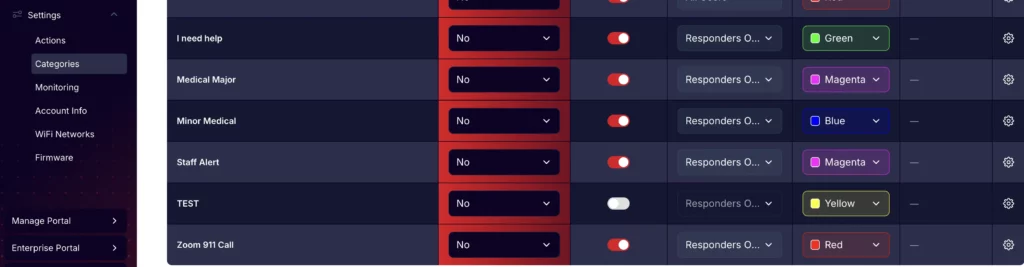
- Go to Settings, then Categories, then Zoom.
- Choose who is notified and which devices activate.
Use case: Send a Zoom 911 call to administrators and the safety team by SMS and app alert, and trigger Alert Stations in the building.
Emergency Numbers
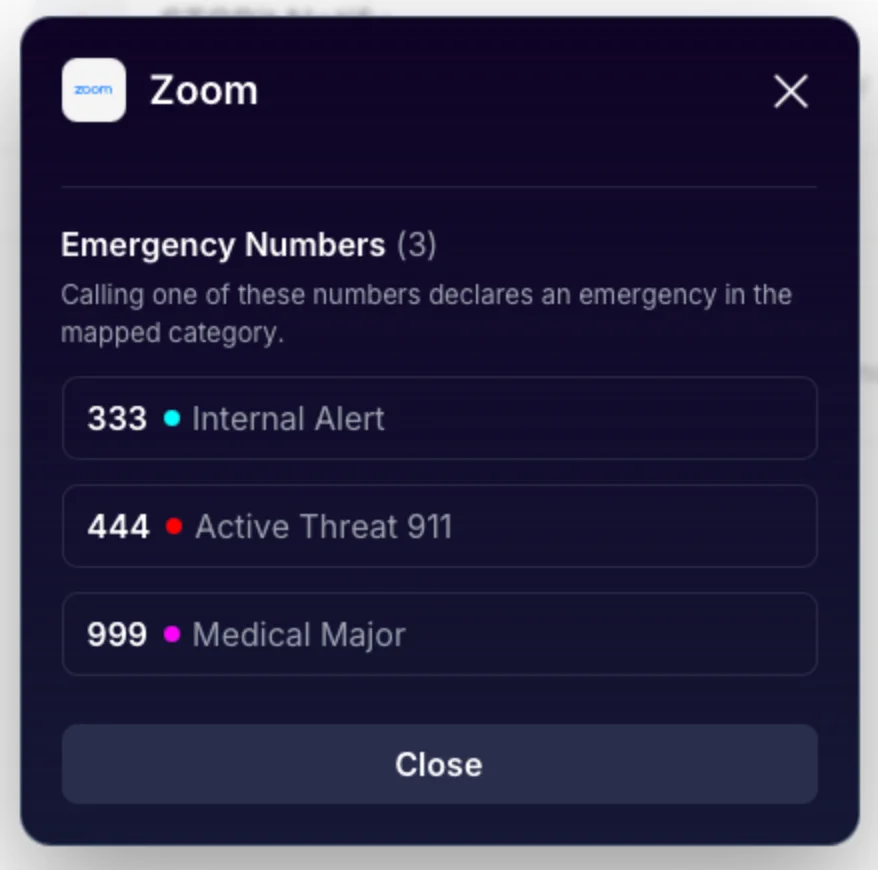
What it does: Dialing a number you map to a category declares an emergency in that category. Numbers can be set as quick-dial buttons on desk phones.
To review your numbers, open the Zoom card and select Edit to see the Emergency Numbers list. Each number is paired with a category and a color. Examples:
These numbers are examples. You choose your own.
Use case: Dial 333 to send an internal staff alert. Dial 999 to declare a major medical emergency and notify the people assigned to that category.
Build a Custom Workflow From a Zoom Call
What it does: Workflows let you decide exactly what happens when a call matches your rules, including steps beyond creating the emergency.
Prerequisites: Zoom connected, and a Punch Rescue admin account.
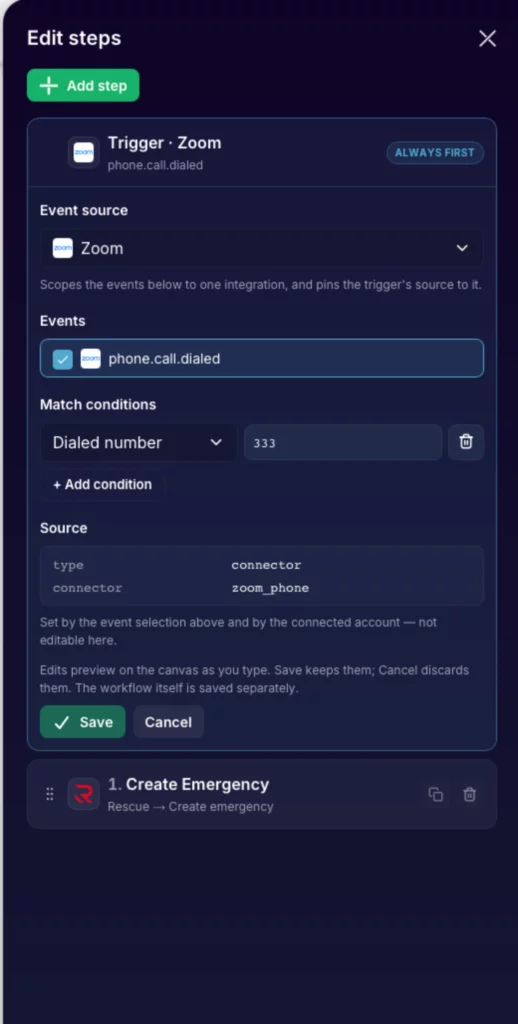
- In Rescue Intelligence, go to Workflows and create a new workflow.
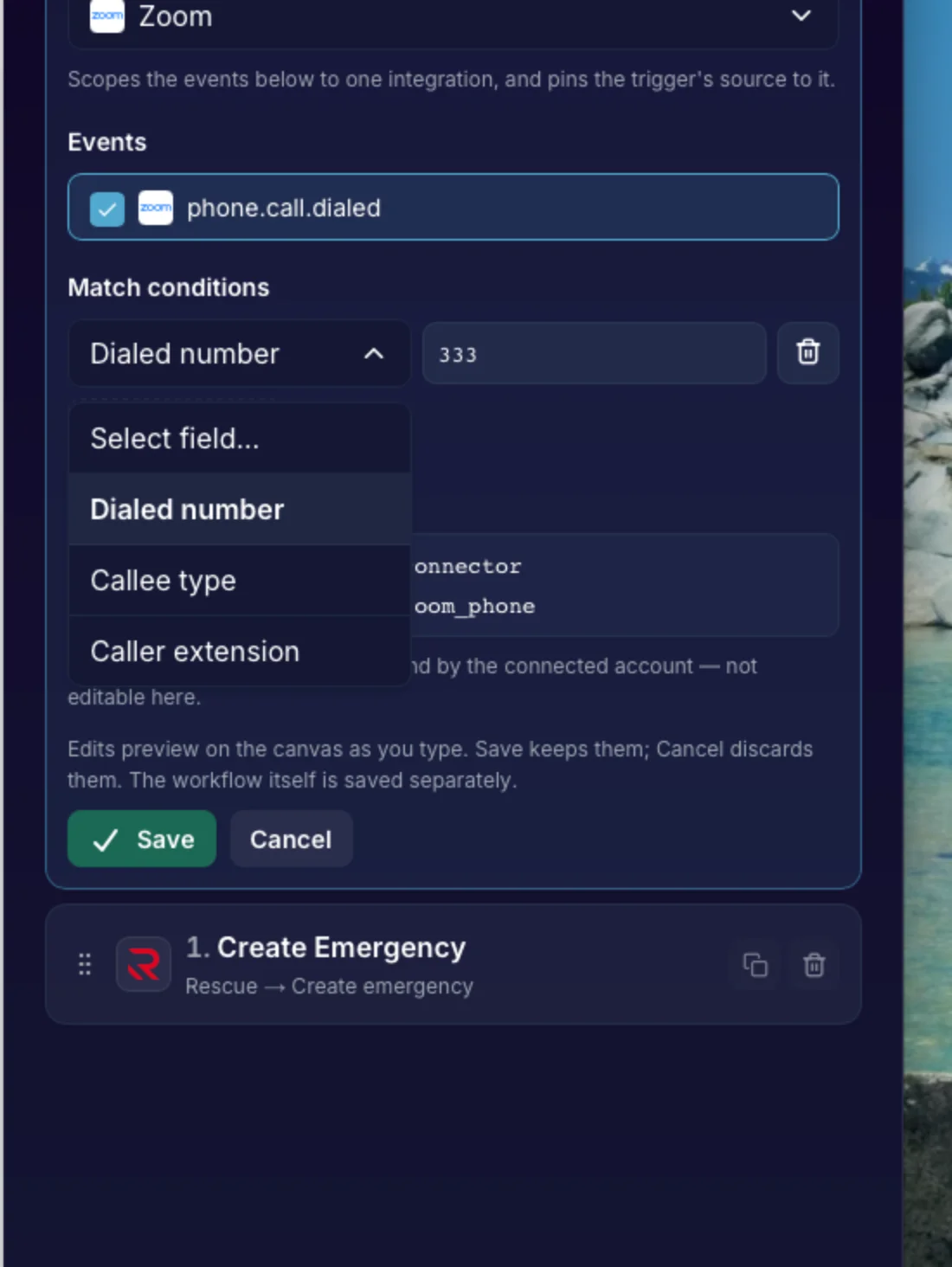
- Set the trigger to Zoom, using the event phone.call.dialed.
- Add a match condition. Choose a field and enter a value. Available fields:
- Dialed number
- Callee type
- Caller extension
- Select Save to keep the trigger settings.
- Add a Create Emergency step and choose the category and response.
- Name the workflow and select Test. Once the test passes, save the workflow. The step editor and the workflow are saved separately, so save both.
Each workflow has an on/off toggle, so you can pause a number without deleting it. Use the pencil icon to edit and the trash icon to delete.
View and Resolve an Emergency
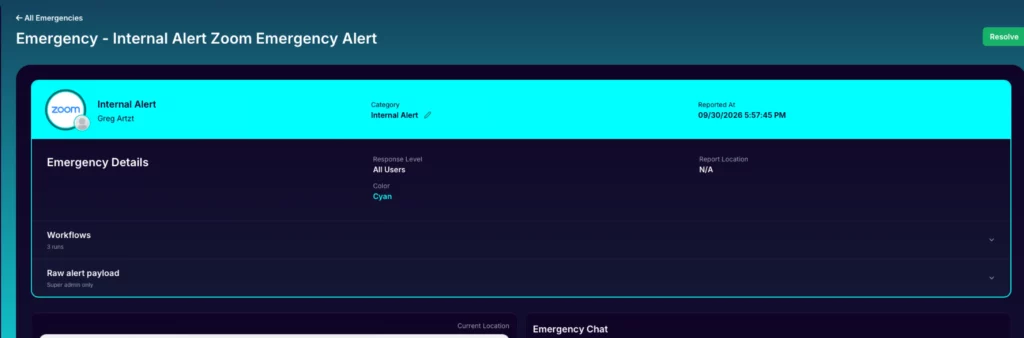
When a Zoom-triggered emergency is created, Rescue shows the caller, category, response level, color, report time, and report location. A Workflows section lists each workflow run for the emergency, and responders can use the Emergency Chat. If the call came from a registered Zoom emergency address, it appears on the map. Select Resolve when the situation is over.

Manage Multiple Organizations (Enterprise)
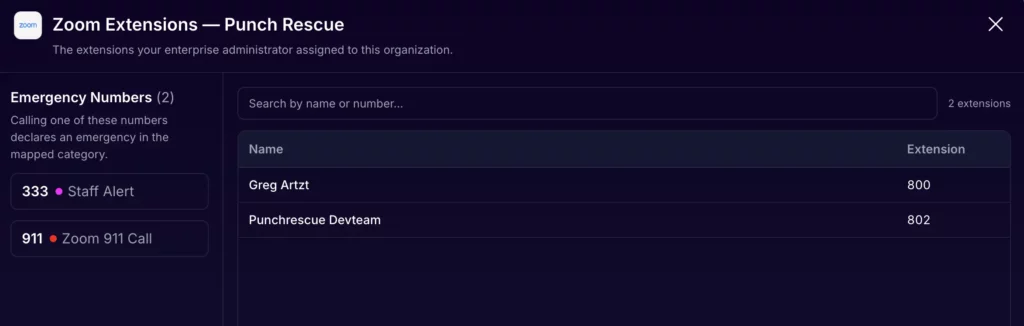
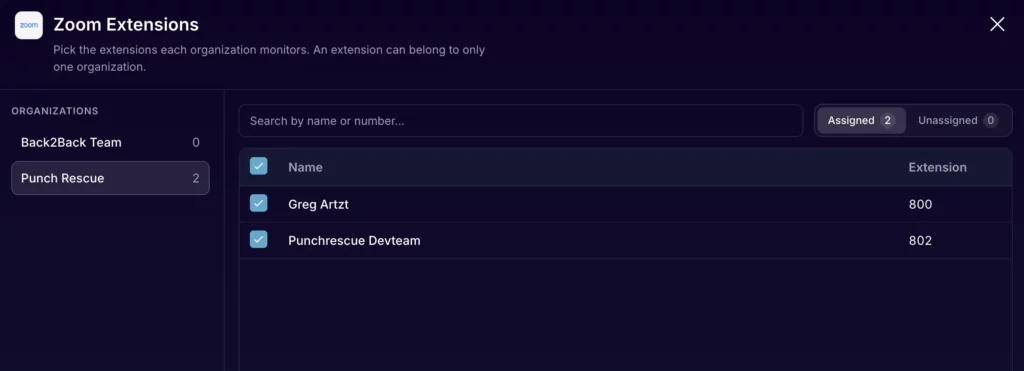
What it does: Enable Zoom once for the entire enterprise, then assign extensions to individual organizations, such as the schools in a district. The assignment controls who is notified when an extension declares an emergency.
Prerequisites: Punch Rescue enterprise portal access.
- Open the Enterprise Portal, then go to Rescue Intelligence and Connectors.
- Select Zoom and enable it at the enterprise level.
- Unassigned extensions are listed. Assign each extension to an organization.
- Select Save assignments.
- Use the test option on each organization to confirm it is connected.
From Zoom (Zoom account admin)
- Sign in at marketplace.zoom.us.
- Go to Manage > Added Apps. Admins may see this as Apps on Account.
- Find Punch Rescue for Zoom Phone, select Remove, and confirm.
Zoom notifies Punch Rescue, which disconnects your account automatically.
From Punch Rescue
- In Rescue Intelligence, go to Connectors.
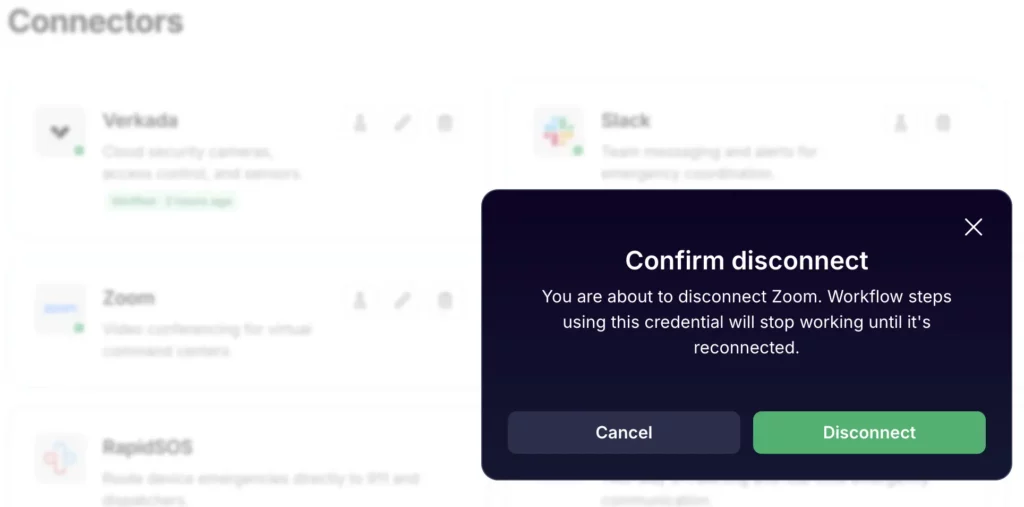
- Select the trash icon on the Zoom card and confirm.
This disconnects Zoom and revokes Punch Rescue’s access in Zoom. Workflow steps that use the Zoom connection stop working until you reconnect.
If the same Zoom account is connected to another Punch Rescue organization, it is removed from this organization only. Access in Zoom stays in place so the other organizations remain connected.
What removal means for you
- Zoom-triggered workflows are kept but stop firing. They work again after you reconnect.
- Extension assignments and Zoom extension and category mappings are deleted.
- Removing the app in Zoom disconnects every Punch Rescue organization using that Zoom account. Disconnecting in one organization does not affect the others.
What happens to your data
I can't connect Zoom
You’re not a Zoom account admin. The app is installed once for the whole Zoom account, so only an account admin (or a user with app-management permission) can approve it. A regular user sees a message asking for admin approval. Ask your Zoom admin to click Connect, or to grant you the permission.
Your Zoom account doesn’t have Zoom Phone. The integration only works with Zoom Phone. Check that your account has Zoom Phone licenses (Zoom admin portal > Phone System Management).
You weren’t sent back to Punch Rescue, or you see an “invalid or expired” error. The connect link is single-use and expires. Start again from Rescue Intelligence > Connectors > Zoom > Connect, not from a bookmarked or back-button page.
You started from the Zoom Marketplace. The Marketplace button (“Visit Site to Add”) only opens Punch Rescue. Finish the connection from Connectors > Zoom > Connect.
Zoom is connected, but no emergency is created when someone calls
- Test the connection. On the Zoom card in Connectors, click Test connection. If it fails, disconnect and connect again (see “The Zoom card shows an error” below).
- Check the workflow is on. Open Workflows and make sure the Zoom workflow is enabled.
- Check the number matches. The workflow fires only when the dialed number matches its trigger (for example, 1234 or 911). Numbers are compared without the leading +1/1, so “+1 555…” and “555…” match. For internal calls, use the extension number in the trigger.
- Check extension assignments. If extensions are assigned to organizations, a call only reaches the organization that owns the caller’s extension. Make sure the caller’s extension is assigned to the right organization, or remove the assignments.
- Check Runs & Logs.
- No run at all: the call didn’t match any enabled workflow. Recheck the number and assignments above.
- A failed run: the call was received, but a workflow step failed. Open the run to see which step and why.
- Wait a few minutes. If Zoom’s real-time notification is missed, Punch Rescue checks Zoom’s call logs every 5 minutes and creates the emergency then.
The emergency appears, but the location is missing or wrong
Location comes from the call itself. When Zoom doesn’t send one, we use the emergency address registered in Zoom (Zoom admin portal > Phone System Management > Company Info > Emergency Addresses).
Make sure each site or user has a correct emergency address. Changes are picked up automatically within a few minutes.
The Zoom card shows an error, or Test connection fails
The connection may have expired or been removed on the Zoom side (for example, the app was removed in Zoom, or the admin who connected it lost admin rights).
Click the trash icon to disconnect, then Connect again as a Zoom account admin. Your workflows are kept and start working again once reconnected.
Reconnect the same way after we add new Zoom permissions to the app. Existing connections keep their old permissions until they reconnect.
One Zoom account, several Punch Rescue organizations
A Zoom account can be connected to more than one organization. Use extension assignments so each call goes to the organization that owns the caller’s extension.
Disconnecting in one organization doesn’t affect the others. Removing the app in Zoom disconnects every organization using that Zoom account.
Removing the app
From Punch Rescue: Connectors > Zoom > trash icon. This also revokes Punch Rescue’s access in Zoom (unless other organizations still use the same Zoom account).
From Zoom: marketplace.zoom.us > Manage > Added Apps > Punch Rescue for Zoom Phone > Remove. Punch Rescue disconnects automatically.
Either way, Zoom tokens, extension assignments, and Zoom mappings are deleted. Workflows and past emergencies are kept.
Still Stuck?
Email support@punchrescue.com with your organization name, the time of the test call, the number dialed, and the caller's extension.
- Support: support@punchrescue.com
- Privacy Policy: punchrescue.com/privacy-policy
- End User License Agreement: punchrescue.com/eula